
Introduction
Customizing your organization helps create a professional and branded experience for your team and clients. This guide covers setting up your logo, organization details, and social media connections. By the end, your workspace will reflect your brand identity.
Tip
Prerequisites
- Owner or Admin access to organization settings
- Logo file in PNG, SVG, or high-quality JPEG format
- Social media profiles (optional but recommended)
Core Concepts
Organization Profile
Your organization's basic information including name, logo, and contact details.
Branding Elements
Visual and textual elements that represent your organization consistently.
Social Integration
Connecting your social media presence to your workspace for better engagement.
Step-by-Step Guide
Access Organization Settings
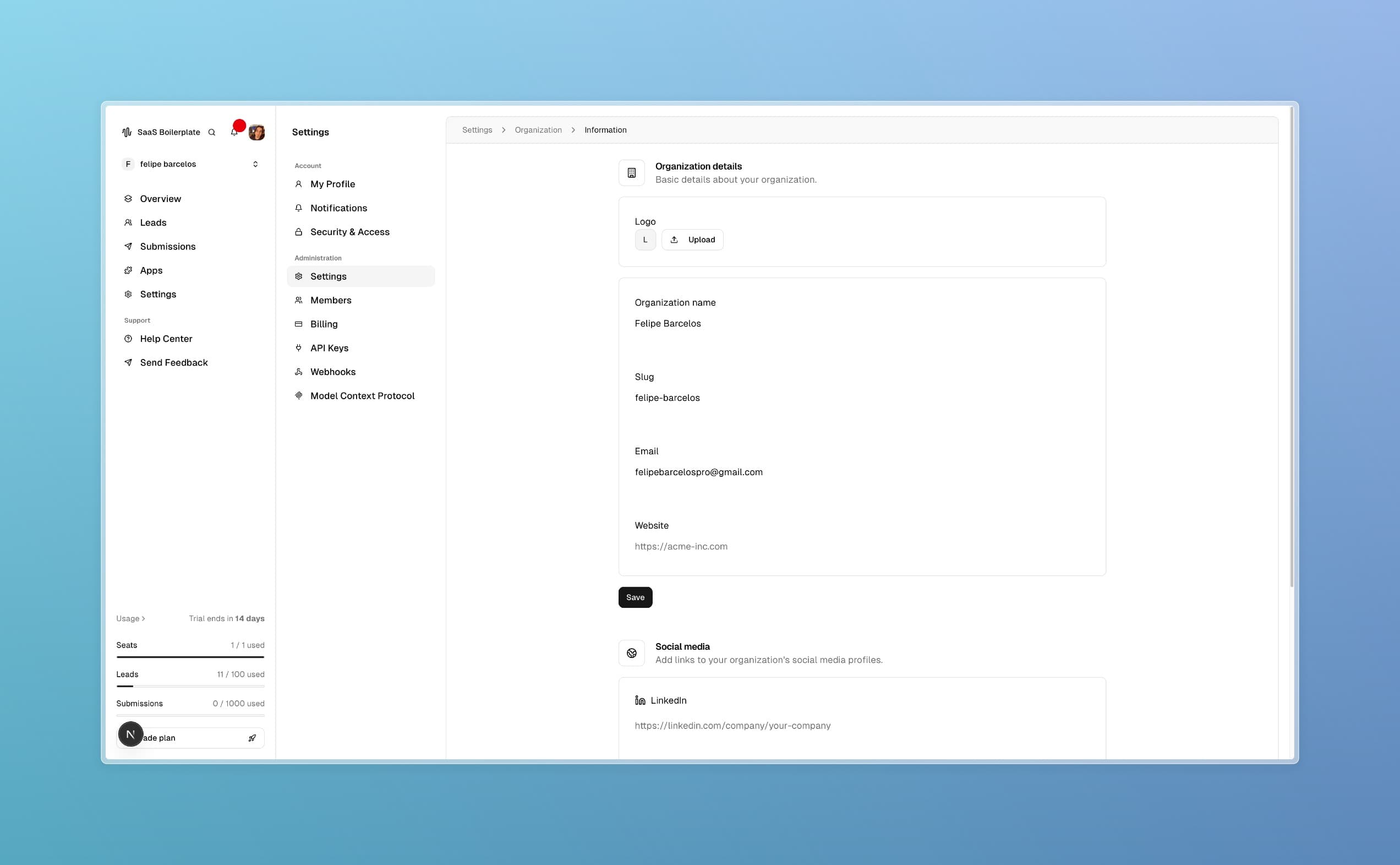
Navigate to Settings > Organization > Information in the dashboard.
Upload Logo
Click the upload button and select your logo file. Ensure it's high-resolution for crisp display.
Set Organization Details
Enter your organization name, slug, contact email, and website URL.
Add Social Media Links
Connect your LinkedIn, Instagram, YouTube, and other social profiles.
Save Changes
Click Save to apply your customizations across the platform.
Troubleshooting
Best Practices
Read More